Start a comparison
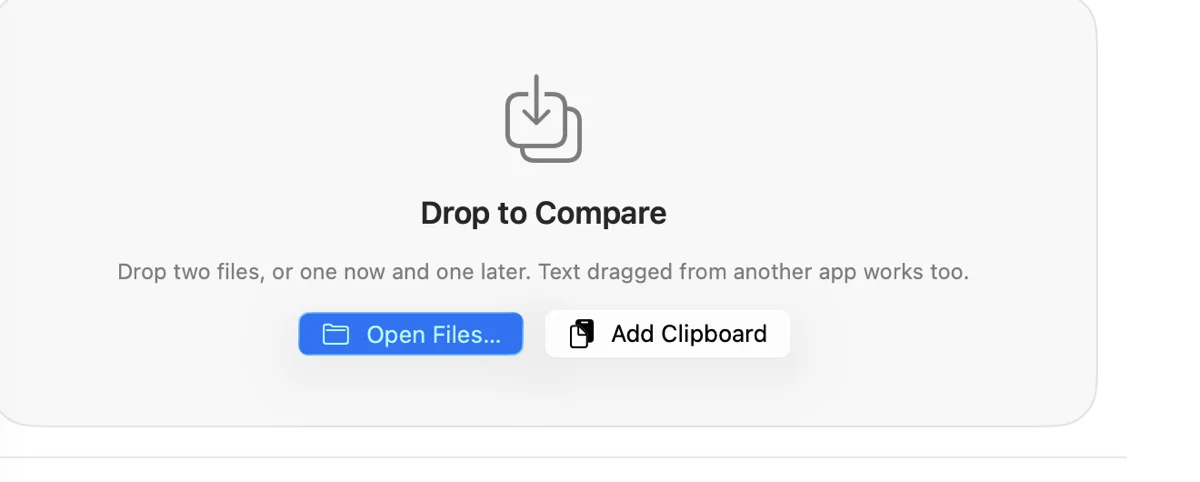
Most comparisons start in the Welcome window. Drop two files or folders on Compare. If you only have one to hand, drop it and add the other later. Text dragged out of another app works as well, and three files or three folders open a merge instead.
- Open… (⌘O) lets you choose two files. Choose four and Bifocal pairs them off into two comparisons.
- Add Clipboard makes whatever you last copied one side. Paste into the empty side to compare two snippets.
- Recents remembers every comparison that reached a result and where its files were. Open one again, drag it onto Compare, or copy a link to it.
- Repositories holds the Git repositories you have added (see Git).
- Getting Started has a sample of each kind, and the tour.
Bifocal looks at the two sides and opens the window that suits them: text, a merge, folders, images, a document, a table, a model, a recording, or the hex view. If it guessed wrong, or you want another angle, View As in the toolbar shows the same pair a different way. A Word file can be read as text or drawn as it looks.
One window can hold several comparisons. Add Comparison to Window (⌘T) adds one and the sidebar lists them. On the Mac, your windows come back after a restart, each where you left it.
Text and code
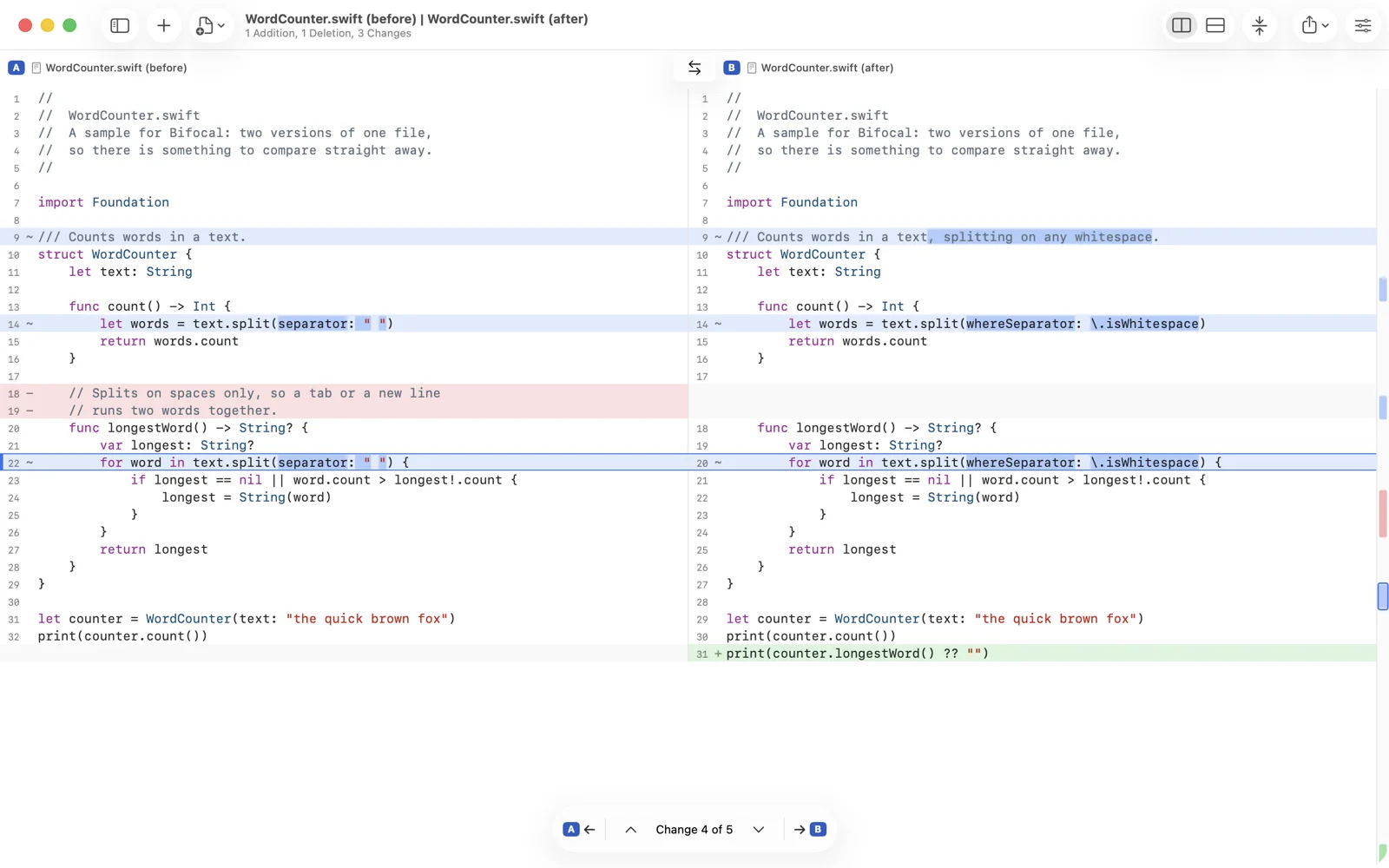
The two sides sit side by side (⌘1) or in one column (⌘3). Changed lines get a symbol in the gutter as well as a colour, and inside them the words that changed are highlighted. The title counts the lines added, deleted and changed.
- Move between changes with the navigator at the bottom, or ⌘↓ and ⌘↑. The strip at the right edge shows every change in the file; click one to jump there.
- Copy a change to the other side with the navigator's arrows (⌘← and ⌘→). Bifocal asks once per file before the first write, keeps the replaced file in its Backups folder for 14 days, and Undo puts it back.
- Options, in the inspector, decide what counts as a change: the algorithm, whitespace, case, blank lines, lines that match a regular expression, and Match prose by paragraph, which reads re-wrapped text as unchanged. These only change the matching. The text on screen is never altered.
- Collapse Unchanged Lines (⇧⌘K) folds away what did not change. Click a fold to open it.
- The View menu has Wrap Lines, Show Line Numbers, Syntax Coloring (20 languages, by the file's extension) and Swap A and B.
Very large files open in one column without colouring, above a size you set in Settings › Advanced. Above a second size they open as bytes instead (see Binary files).
Find and Filter
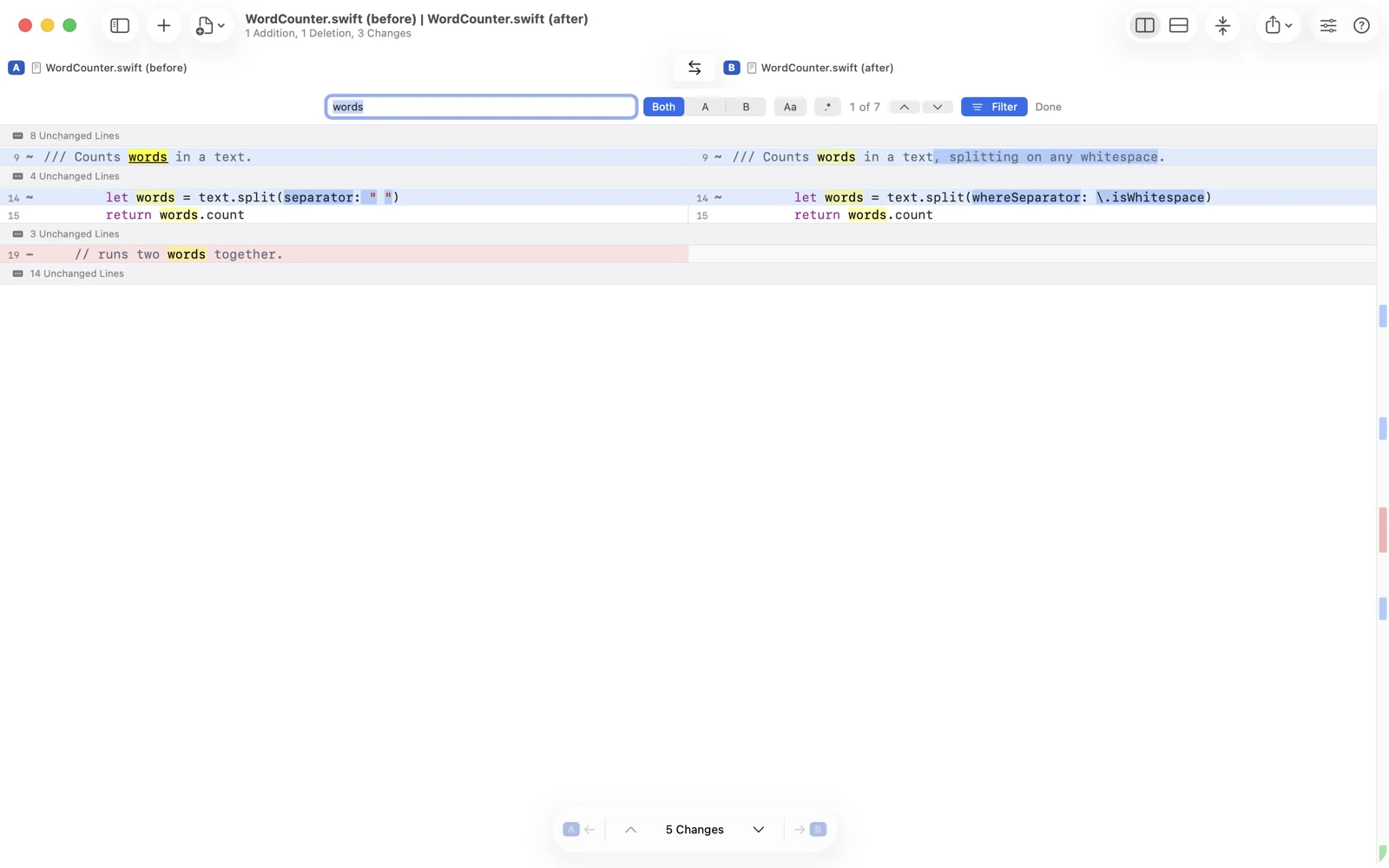
Find… (⌘F) opens a bar at the top of the text, merge and table windows. Type and the matches are counted; ⌘G and ⇧⌘G step through them. You can look in A, B or both, match case, or use a regular expression. Filter, next to it, hides every line that does not match and folds the gaps, which is the quickest way to follow one name through a long file. In a table it folds the rows instead.
Live reload
A comparison reads its files again whenever another app saves them, and stays on the change it was showing. Save in your editor and the diff updates on its own. View › Pause Reloading stops it for one window, and Settings › General turns it off for new ones. On the Mac a changeset can also notify you when the working copy changes while Bifocal is in the background.
Comments and bookmarks
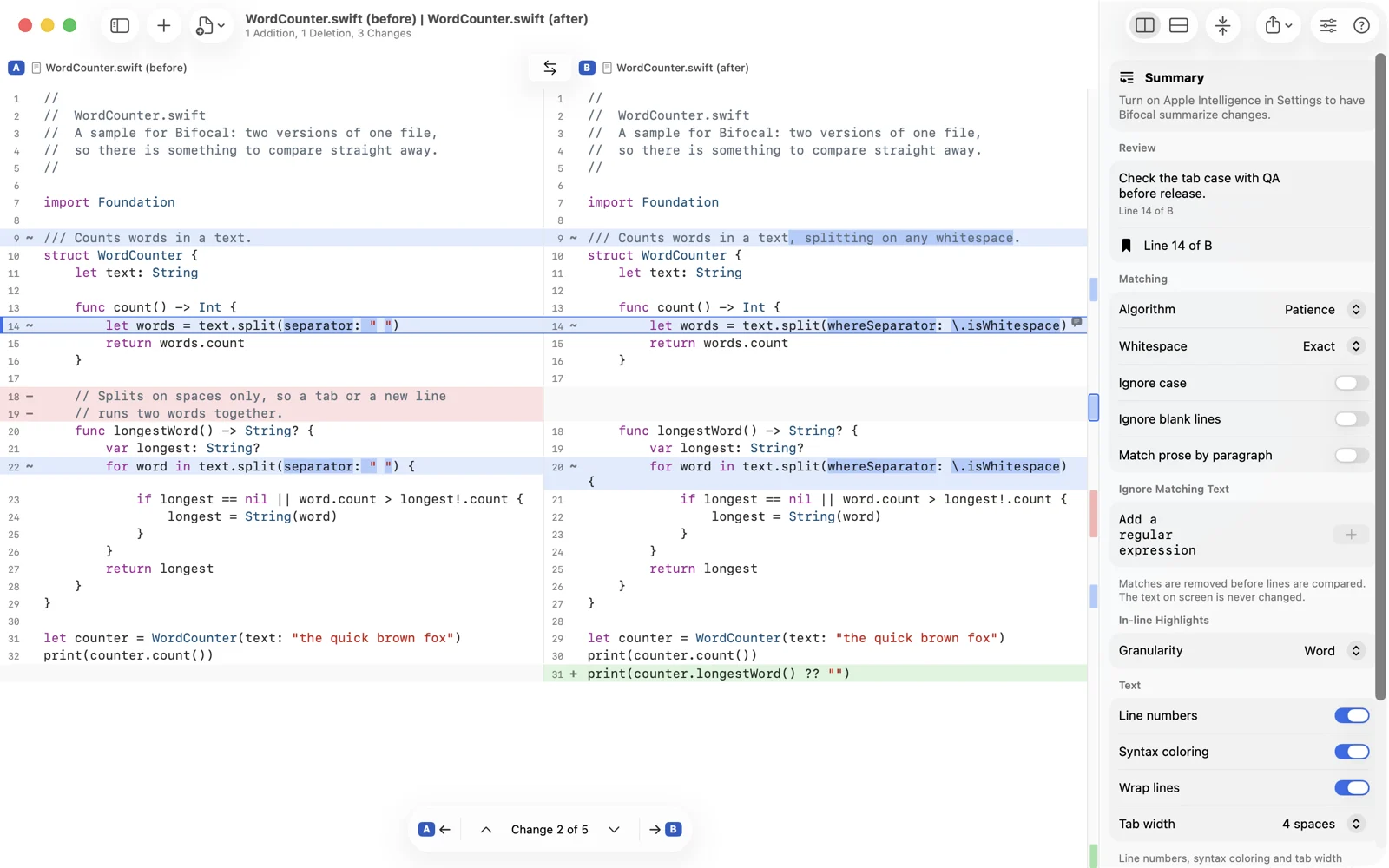
Reviewing with someone else, or with yourself next week, is easier with notes. In the text window, Add Comment… (⌥⌘C) writes one on the current change and Bookmark Change (⌘D) marks it. ⌥⌘↓ and ⌥⌘↑ step through the bookmarks. Marked rows carry a small symbol at their trailing edge, and the inspector's Review section lists them all. Comments and bookmarks are saved with the session, find their line again after the file changes, and are printed after each change in HTML and PDF reports.
Change summaries Pro
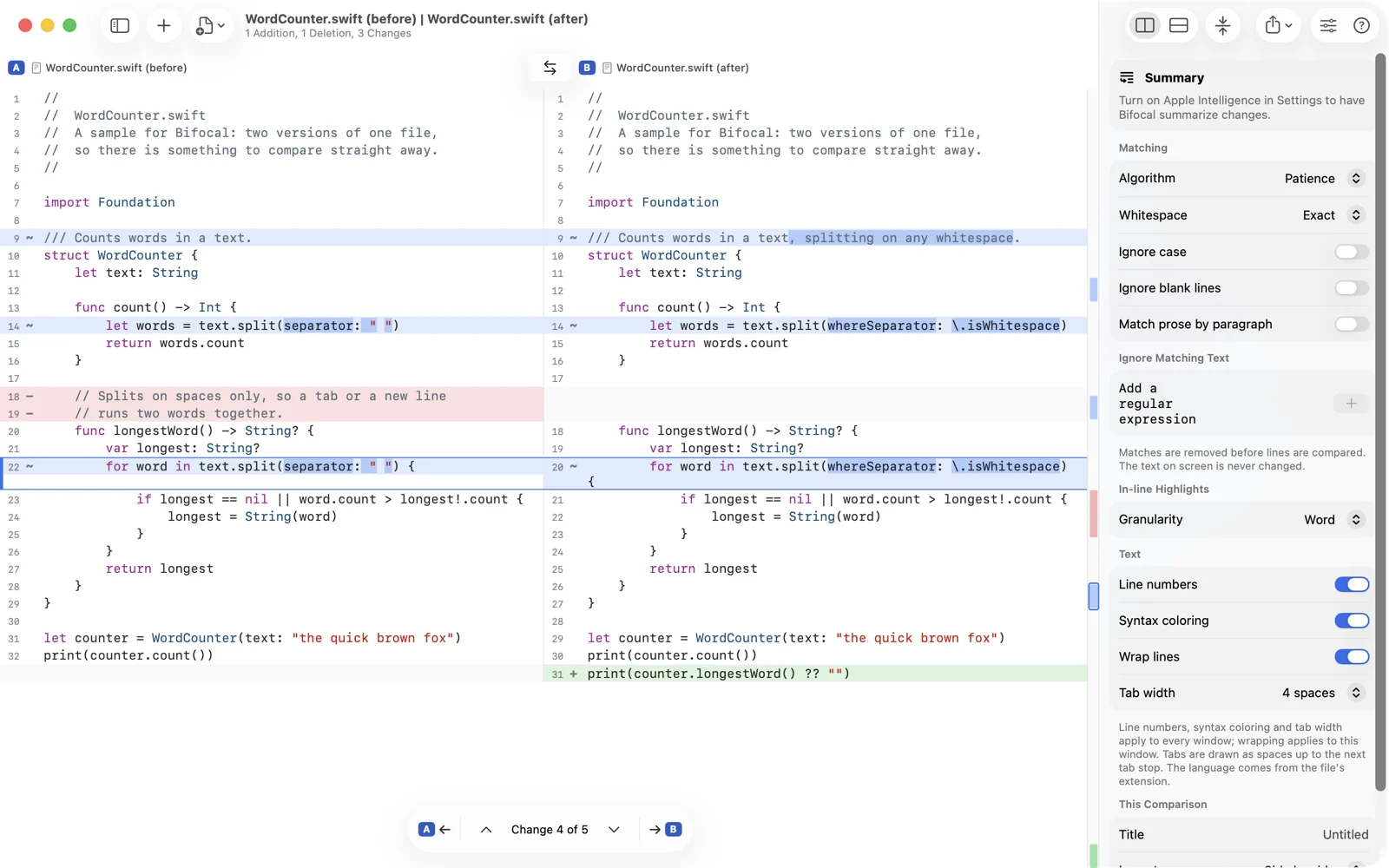
The Summary card at the top of the inspector describes in a few sentences what changed in a text or document comparison. A changeset's toolbar has a Summary button that does the same for all its files. The summary is written by Apple's on-device model from the changed lines and a line of context, only when you ask, and nothing leaves the device. It needs Apple Intelligence turned on; where it is not, the card says so.
Merge Pro
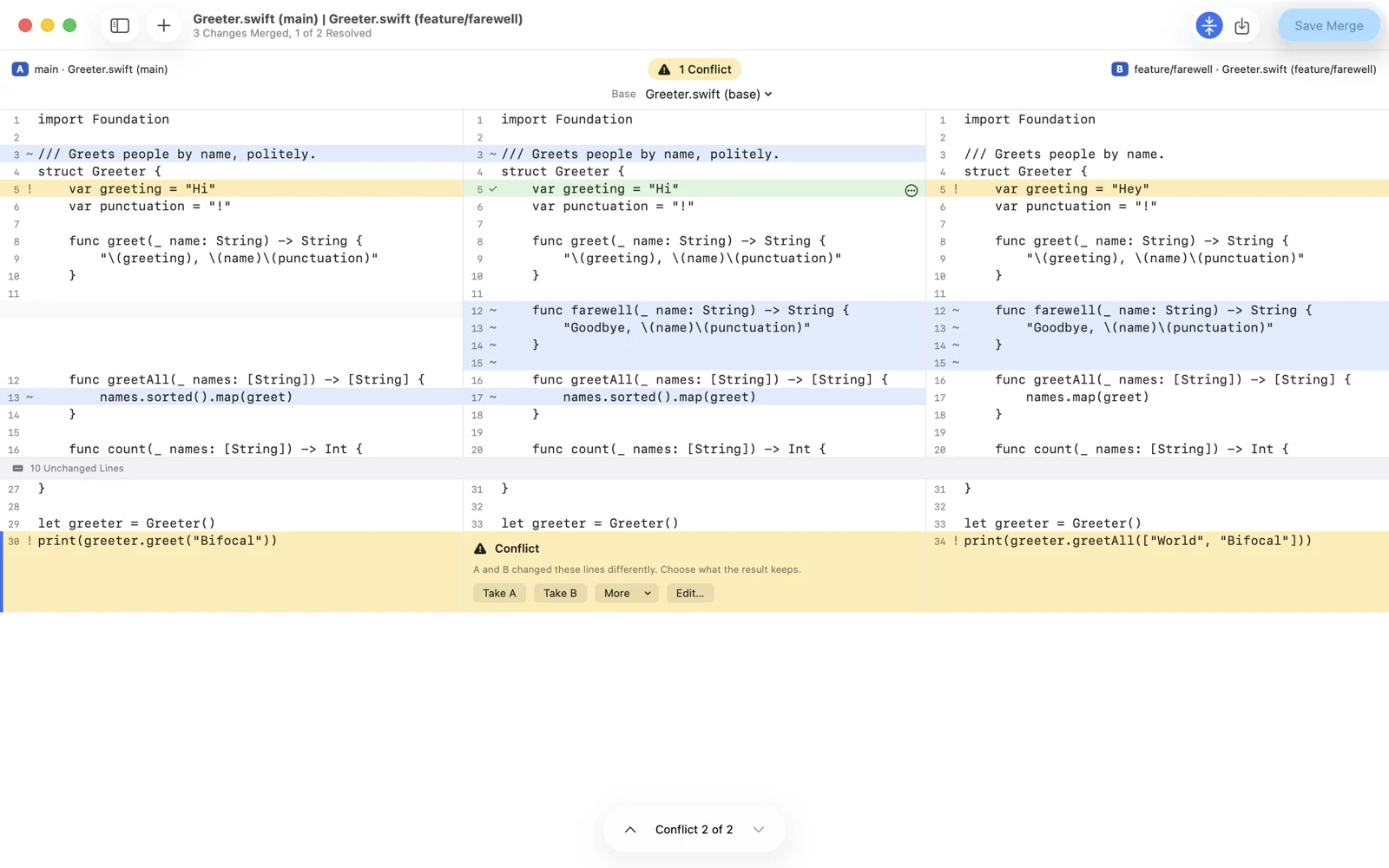
Three panes: A, the result, and B, with the common ancestor as Base. Bifocal picks the file modified longest ago as the base, and you can choose another. Each conflict sits where it is, with Take A, Take B, and More for both in either order or the base. The title counts the conflicts, and Save Merge writes the result once none are left. Merges open with the unchanged lines collapsed, so the conflicts are what you see.
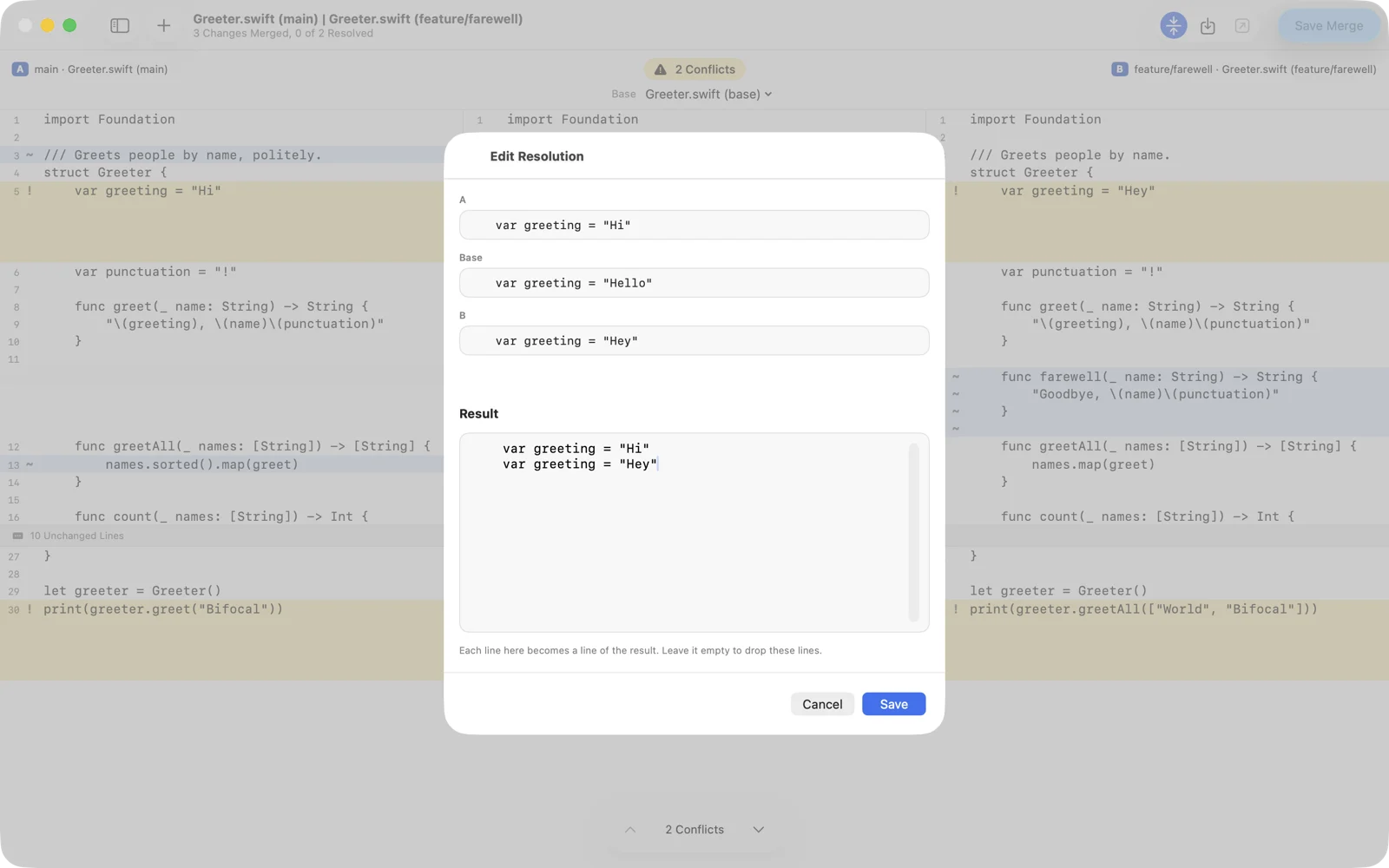
When neither side has it right, Edit Resolution… (⌘E) opens the conflict with A, Base and B above a field where you write the result. From Git, git mergetool opens each conflicted file here once Bifocal is set up (see Integration), and a changeset's conflicted files offer Resolve in Merge Window.
Folders and archives Pro
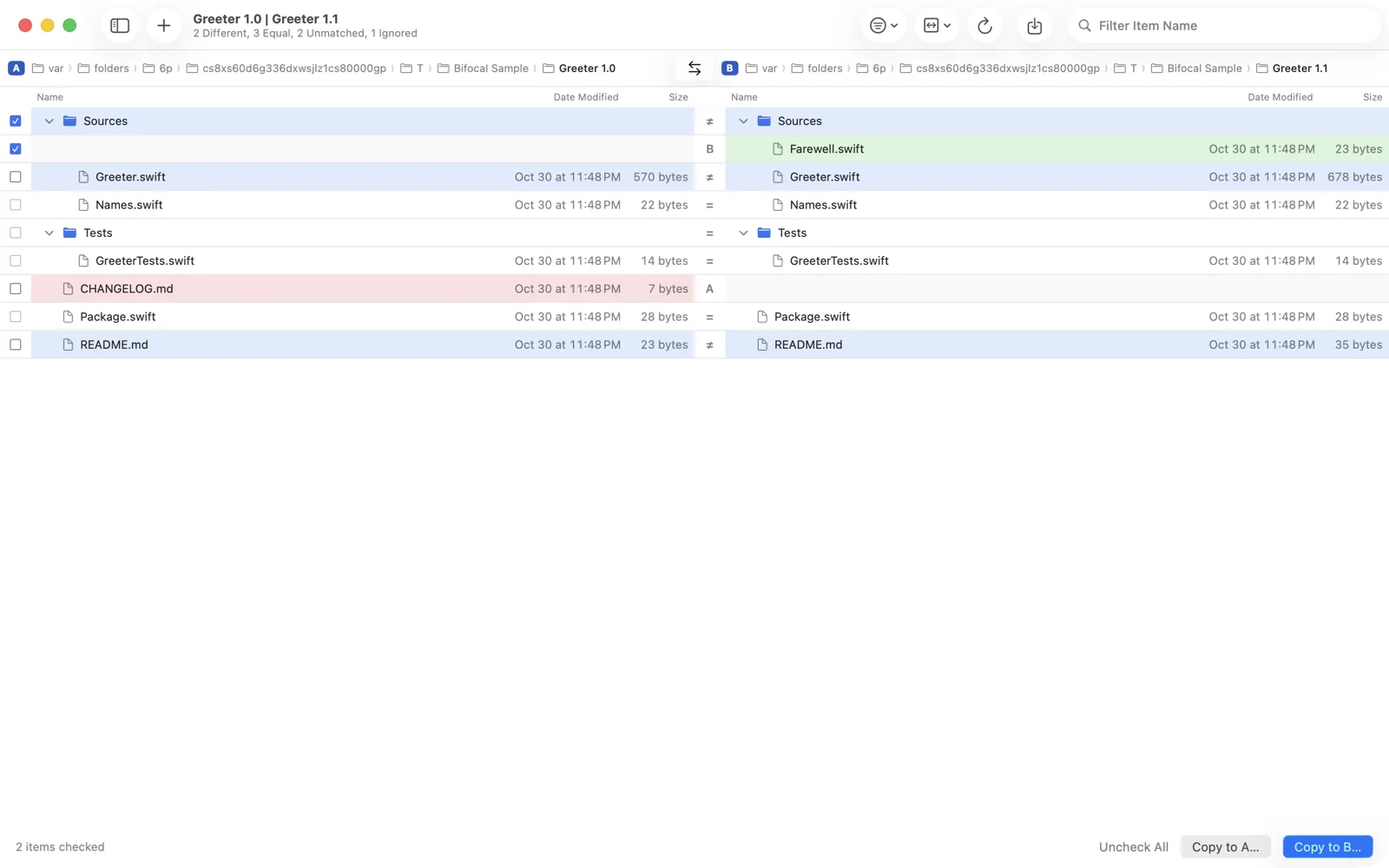
Two folders side by side, each item marked as different, equal, only in A, only in B, or ignored, with a symbol between the columns. Show picks which of those to list. Compare Files By chooses between a quick pass on name, size and date and a byte by byte read. Compare Again (⌘R) rescans. Filter by name, and open any pair to compare it.
- Copy to A… and Copy to B… copy the checked items. A sheet lists what will change before anything does, and replaced items go to Backups.
- Mirror (Make B Match A…, Make A Match B…) copies what is new or different and moves what only the target has to the Trash. The sheet lists those moves too. Nothing is ever deleted outright.
- Three folders open as a folder merge. Each item shows its status against the base on both sides, you pick A, Base or B per file, conflicts have no default, and Merge into B… waits until every conflict has a choice.
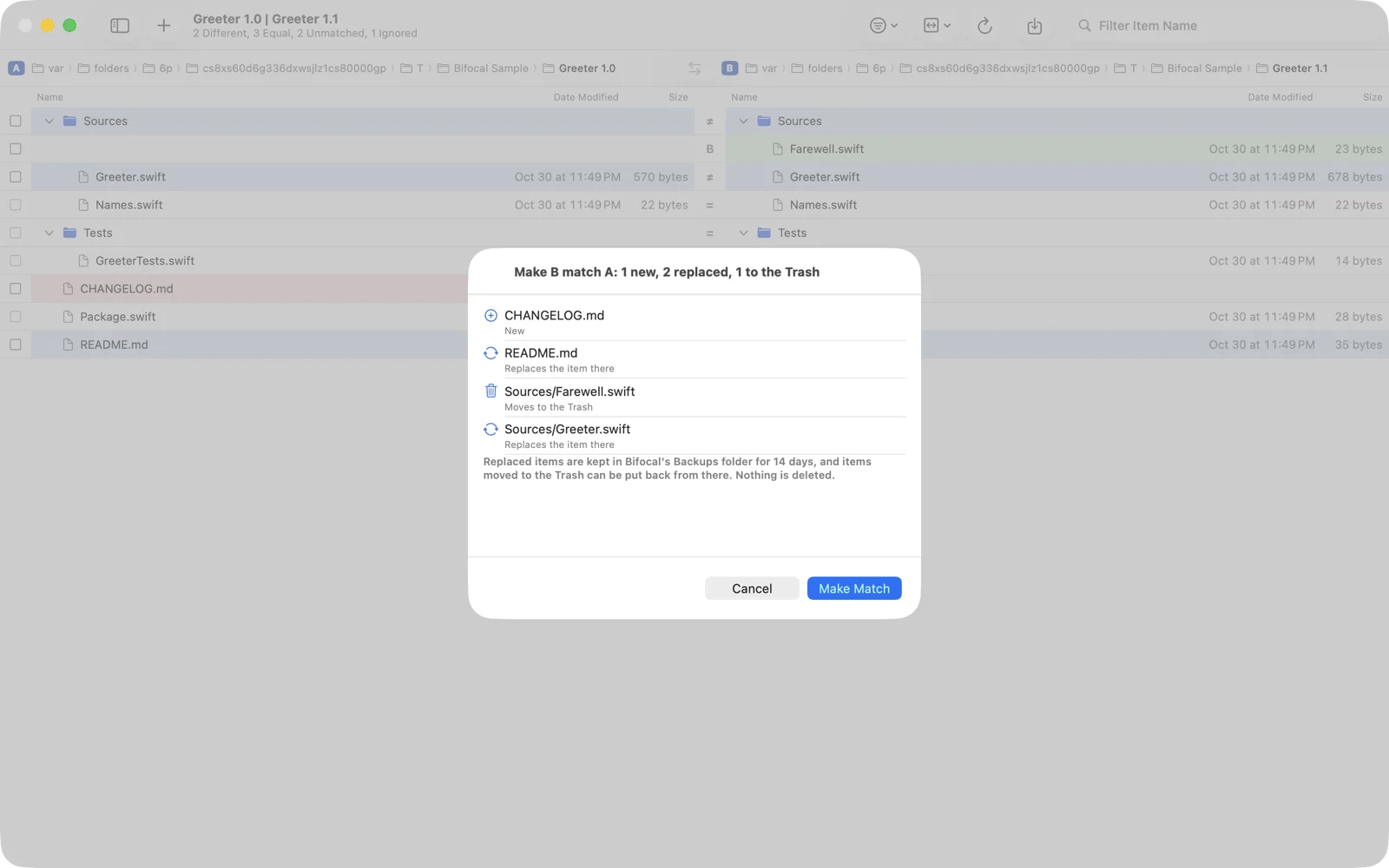
ZIP, tar and gzip archives, and app packages such as .ipa, .apk, .jar and .epub, open as folders. Bifocal never writes into an archive. Anything you copy out of one lands in a folder.
Images Pro
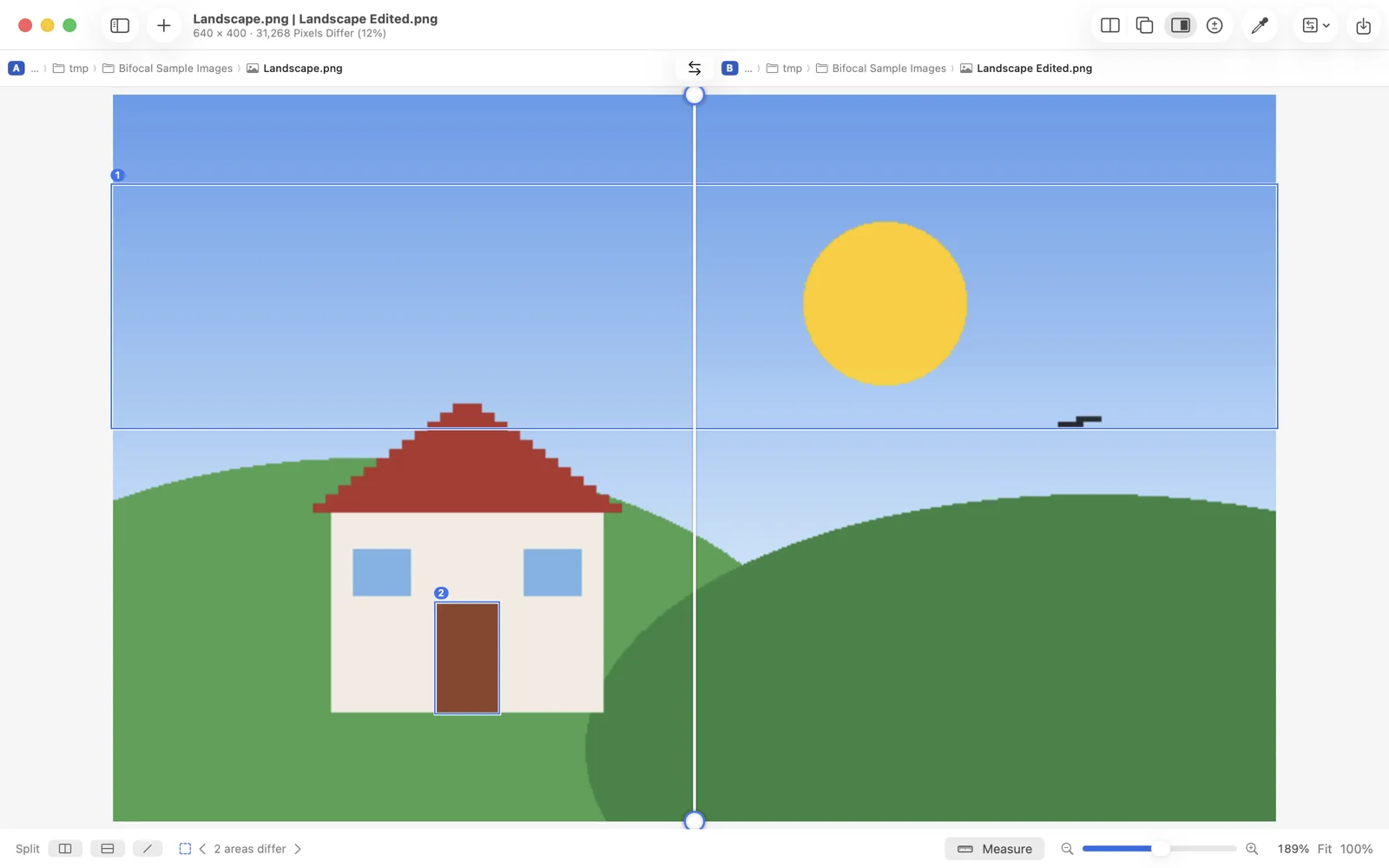
Four modes. Two-Up puts the pictures side by side. One-Up lays B over A with a slider for its opacity. Split draws a line you can drag and turn. Difference shows only the pixels that changed. In every mode the changed areas are outlined, within a tolerance you set. Both images zoom and pan together: ⌘= and ⌘- zoom, ⌘9 fits, ⌘0 is 100%, and on the Mac the scroll wheel pans, or zooms with ⌘ held.
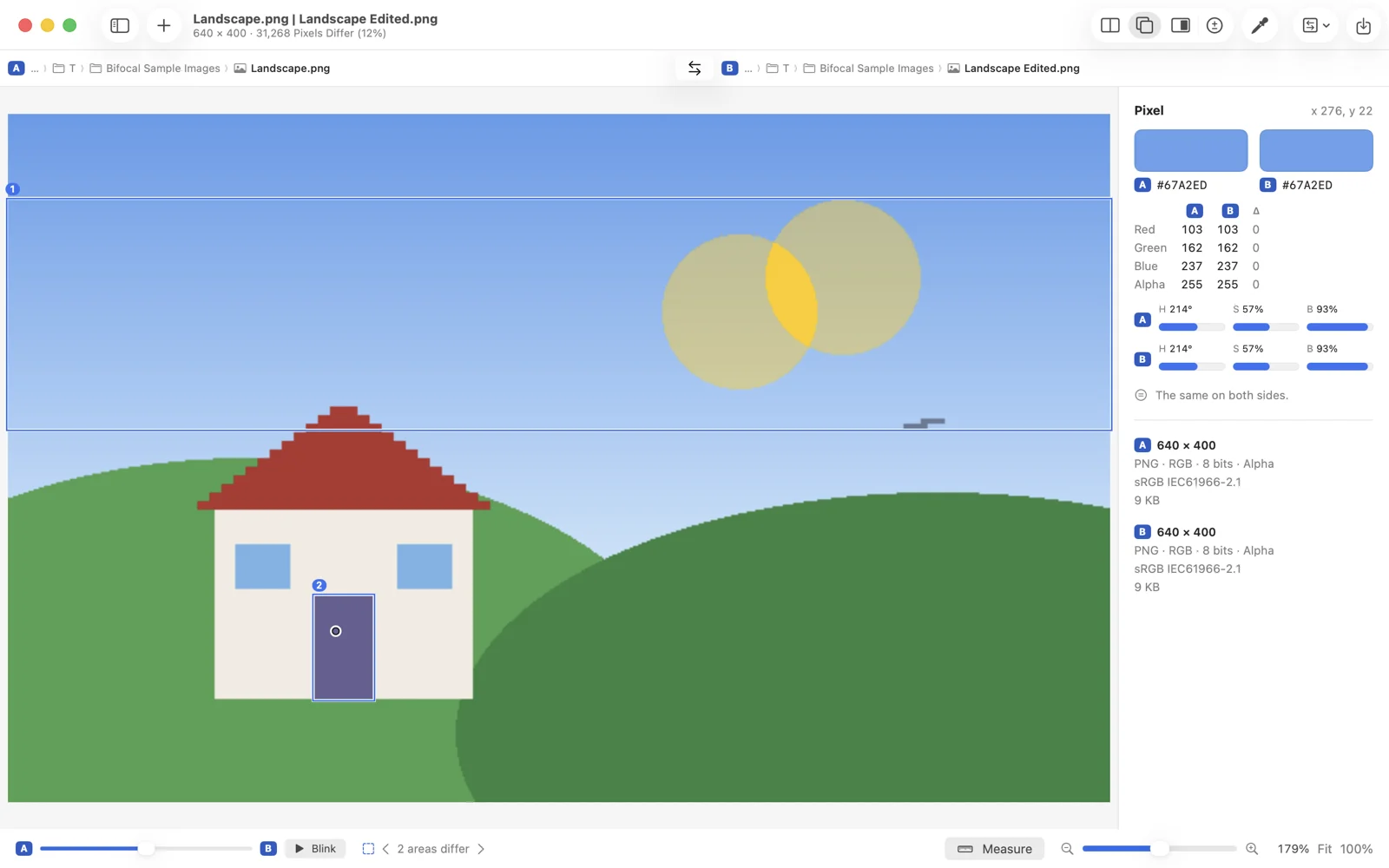
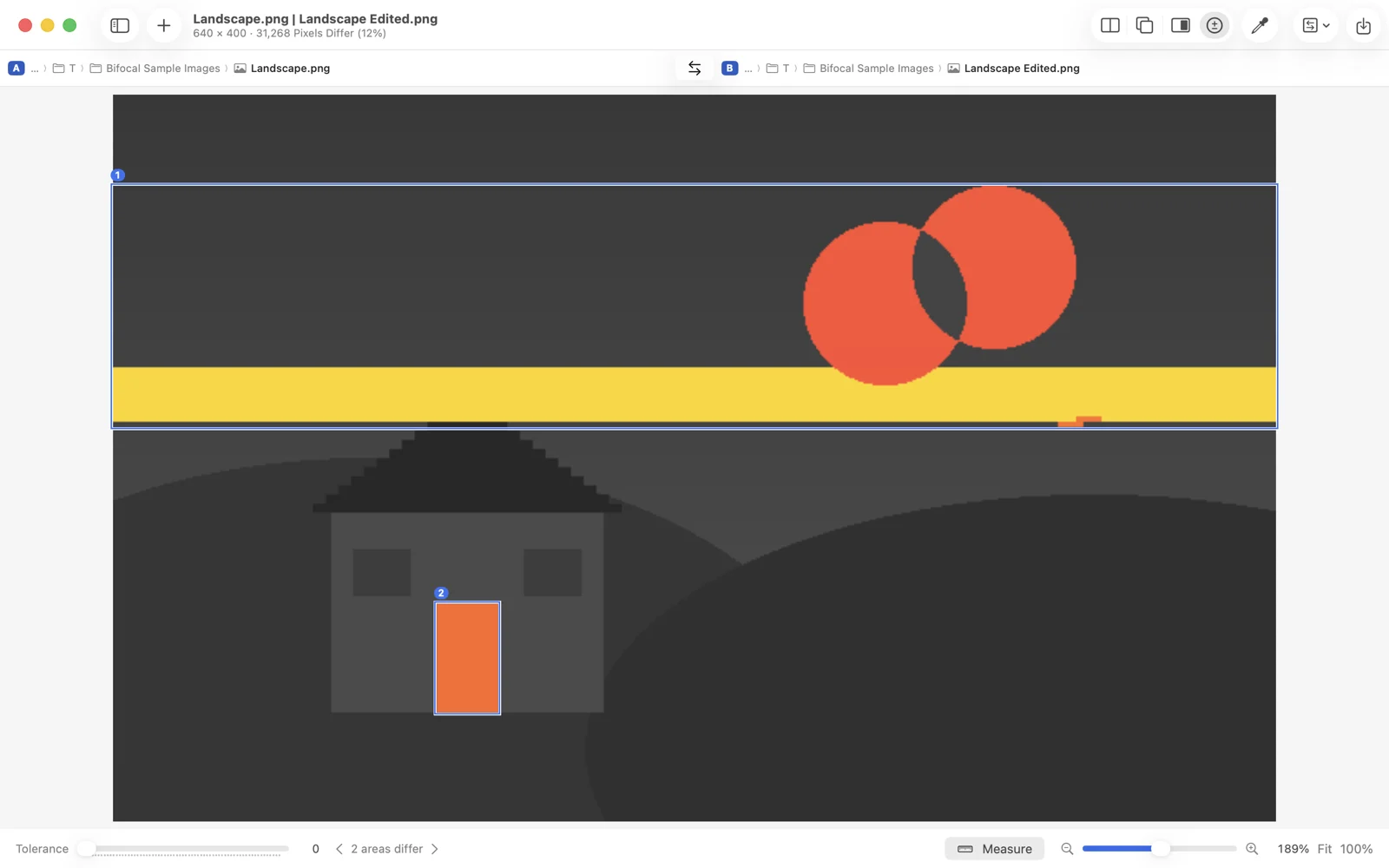
The Pixel Inspector reads the colour under the pointer on both sides. Measure turns a drag into a ruler, labelled in pixels, points or percent of the width. Copy Image puts the difference on the clipboard. Markdown, HTML and SVG files can be shown here too, drawn and compared as pictures.
Documents Pro
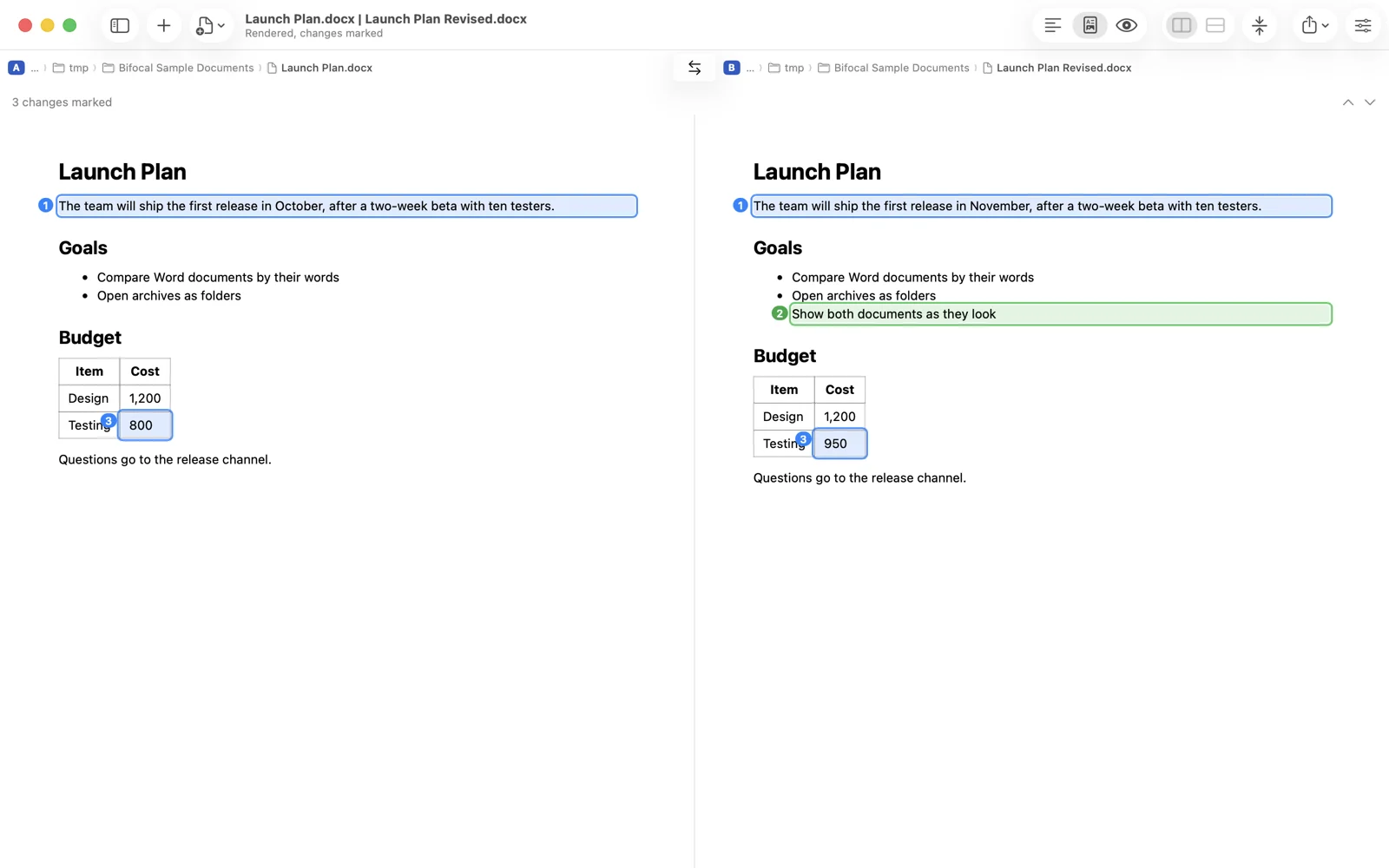
Word (.docx and .doc), PowerPoint (.pptx and .ppt), OpenDocument, PDF and RTF files are compared by their words, with headings, lists, tables and footnotes kept. The options read tracked changes as accepted, as rejected, or marked up, count comments, and show formatting marks so that bold and italic changes count. A scanned PDF page with no text layer is read by text recognition, and the subtitle tells you when that happened.
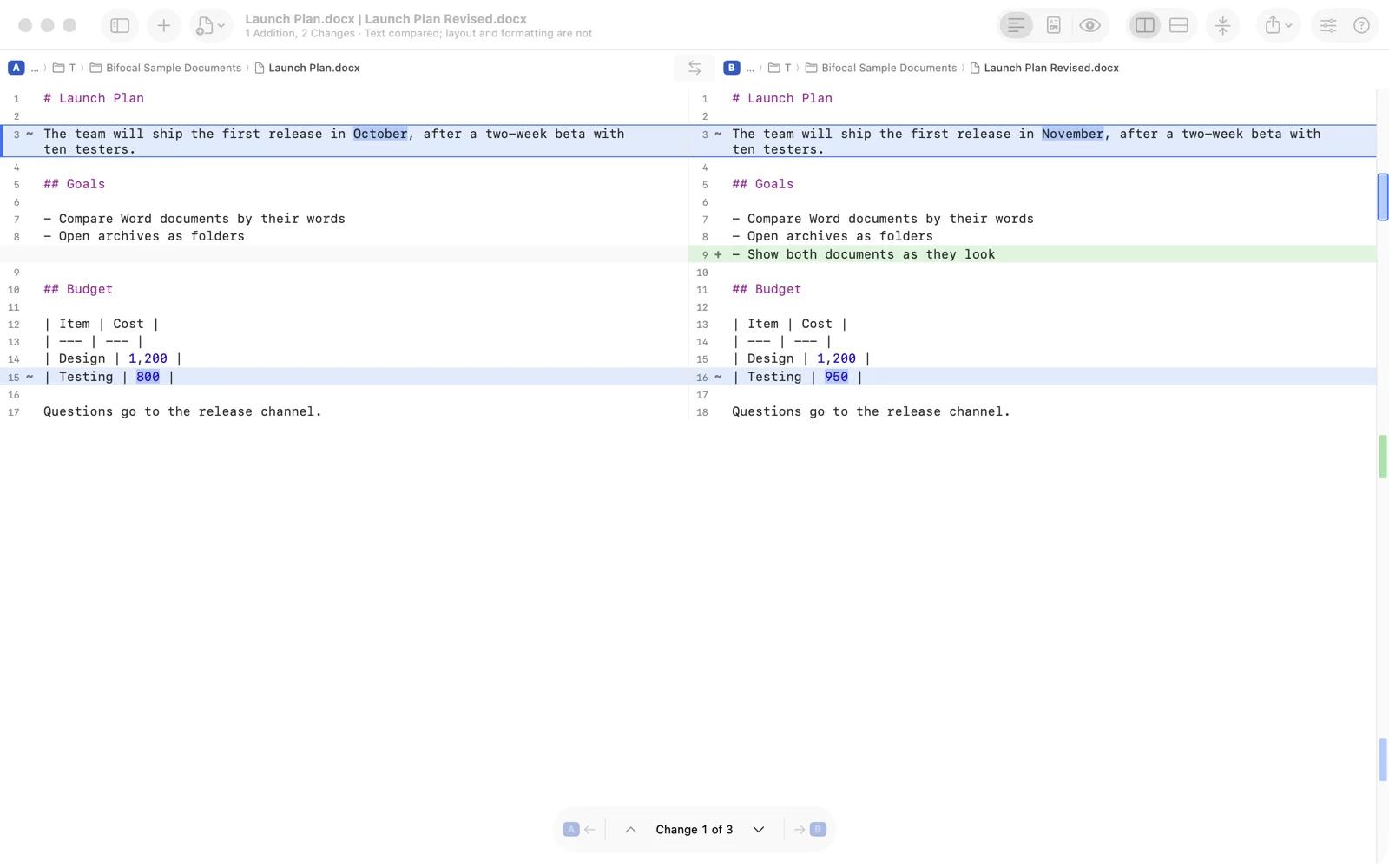
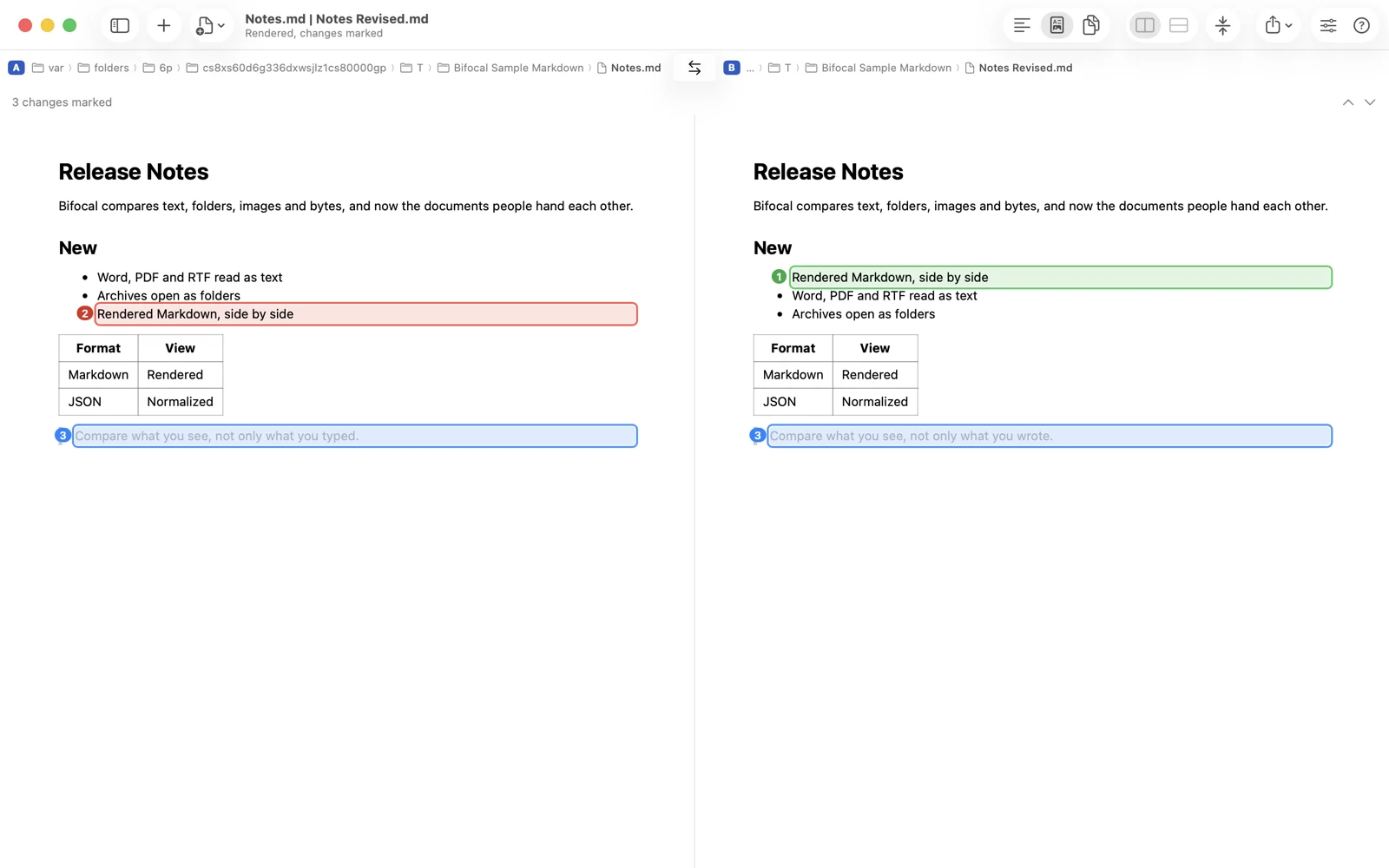
View As offers five ways in: Text compares the words line by line; Rendered draws both documents with the changed blocks numbered and lets you step through them; Pages shows a PDF's pages as pictures, matched by their text; Slides draws both decks with every changed shape outlined, charts and SmartArt included, and names the slides that moved; Preview shows the files as the system does, without marks. Markdown and HTML get Rendered side by side too. Pictures and styles a page asks for from the web are not loaded.
JSON, YAML and XML
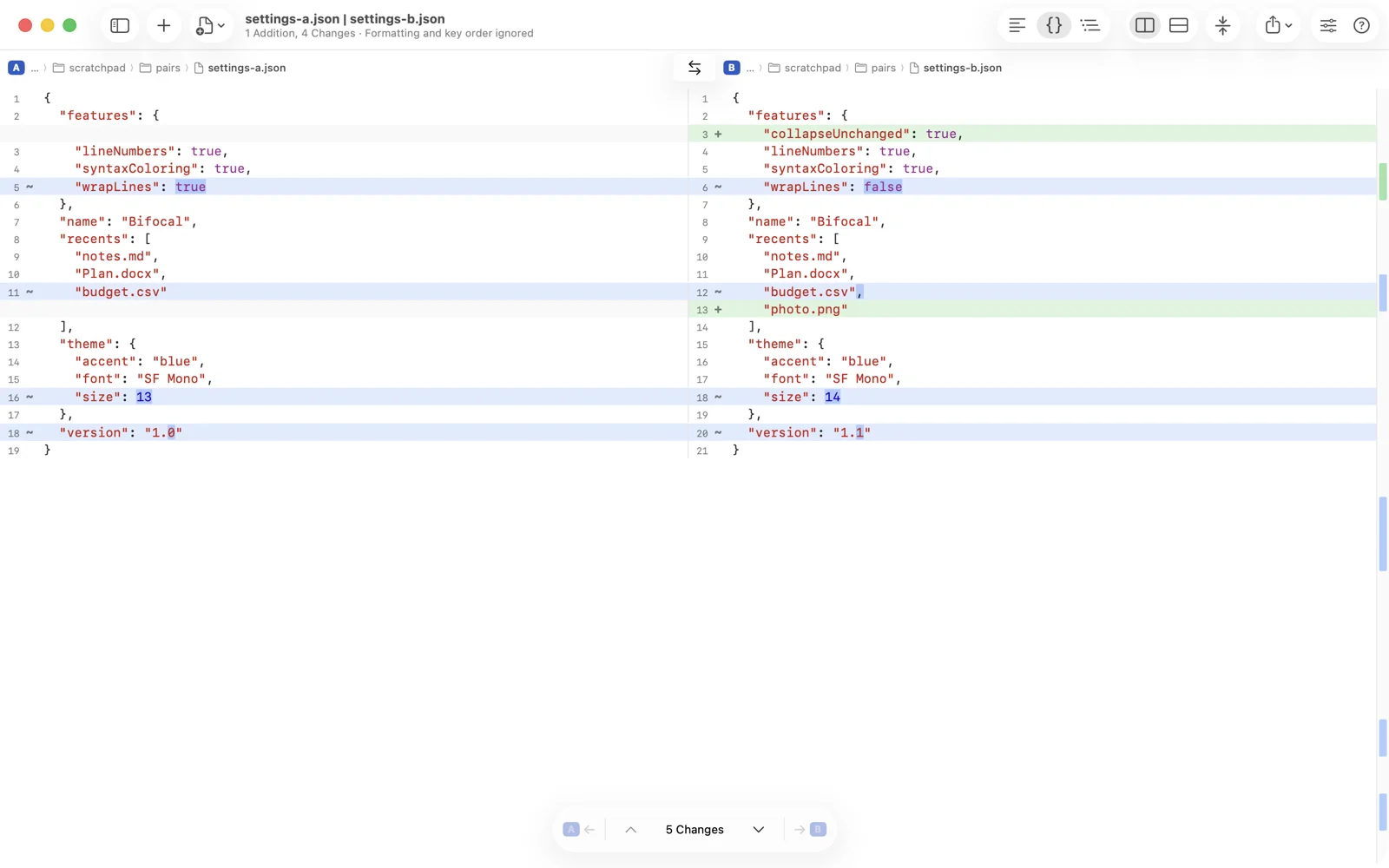
JSON, property lists (binary ones too), YAML, XML, strings files, string catalogs and Jupyter notebooks get two more views. Normalized prints both sides the same way, with formatting and key order set aside, so a reformatted file compares as unchanged and only the values that moved show. For notebooks, outputs and execution counts stay out unless you ask for them. Tree compares the values side by side as an outline, with Only Differences to hide what matches.
Tables Pro
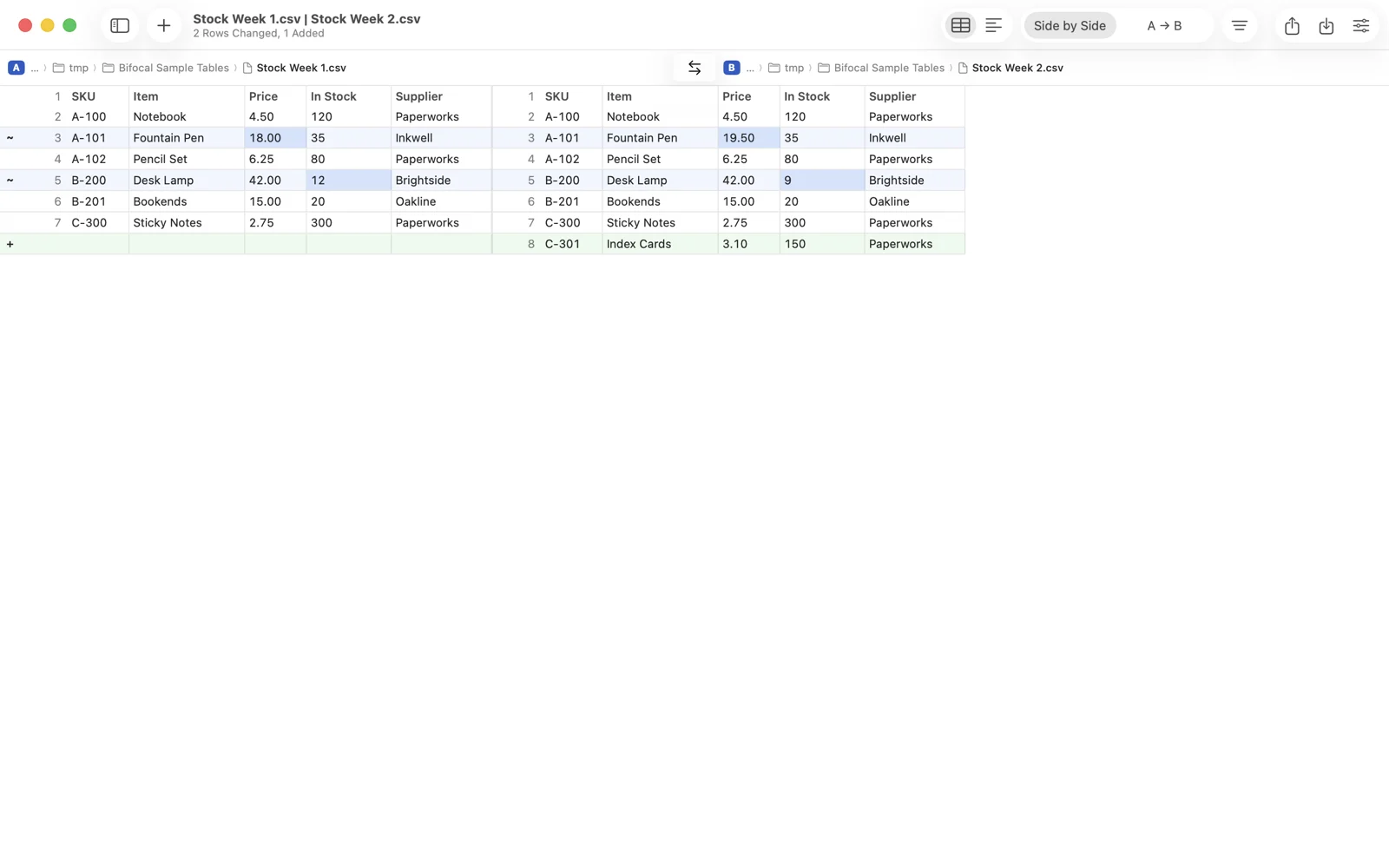
CSV, TSV, Excel (.xlsx and .xls) and OpenDocument spreadsheets, cell by cell, one sheet at a time. Rows are matched by the key columns you name by header or letter, and Bifocal suggests one when it notices rows have moved; without keys, rows match by content and order. Columns match by header name. Numbers count as equal within a tolerance, absolute or as a fraction of the value, and you can compare formulas instead of values. The grid shows A and B side by side or as "A → B", and Only Differences and Changed Rows narrow it down. Without Pro, CSV and TSV compare as text.
3D models Pro
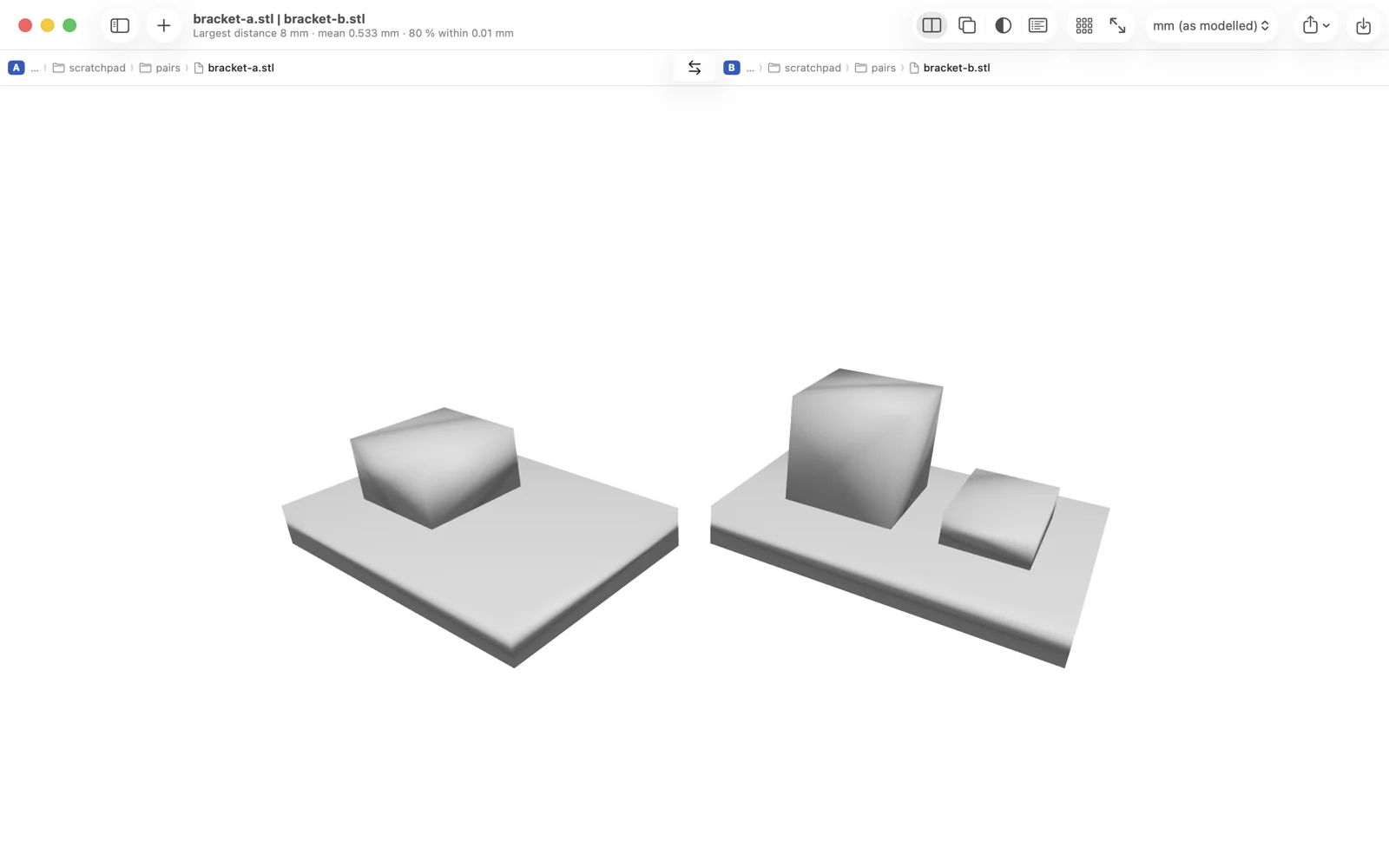
STL, OBJ, 3MF and PLY models open side by side under one camera, so turning one turns the other. You can also overlay them, draw them as wireframes, or colour the surface by how far it is from the other model: grey within the tolerance, then blue through to red. Units are millimetres or inches, and Properties lists volume, area and size. USDZ files are shown. STEP and IGES parts need exporting as STL or 3MF first.
Video and audio Pro
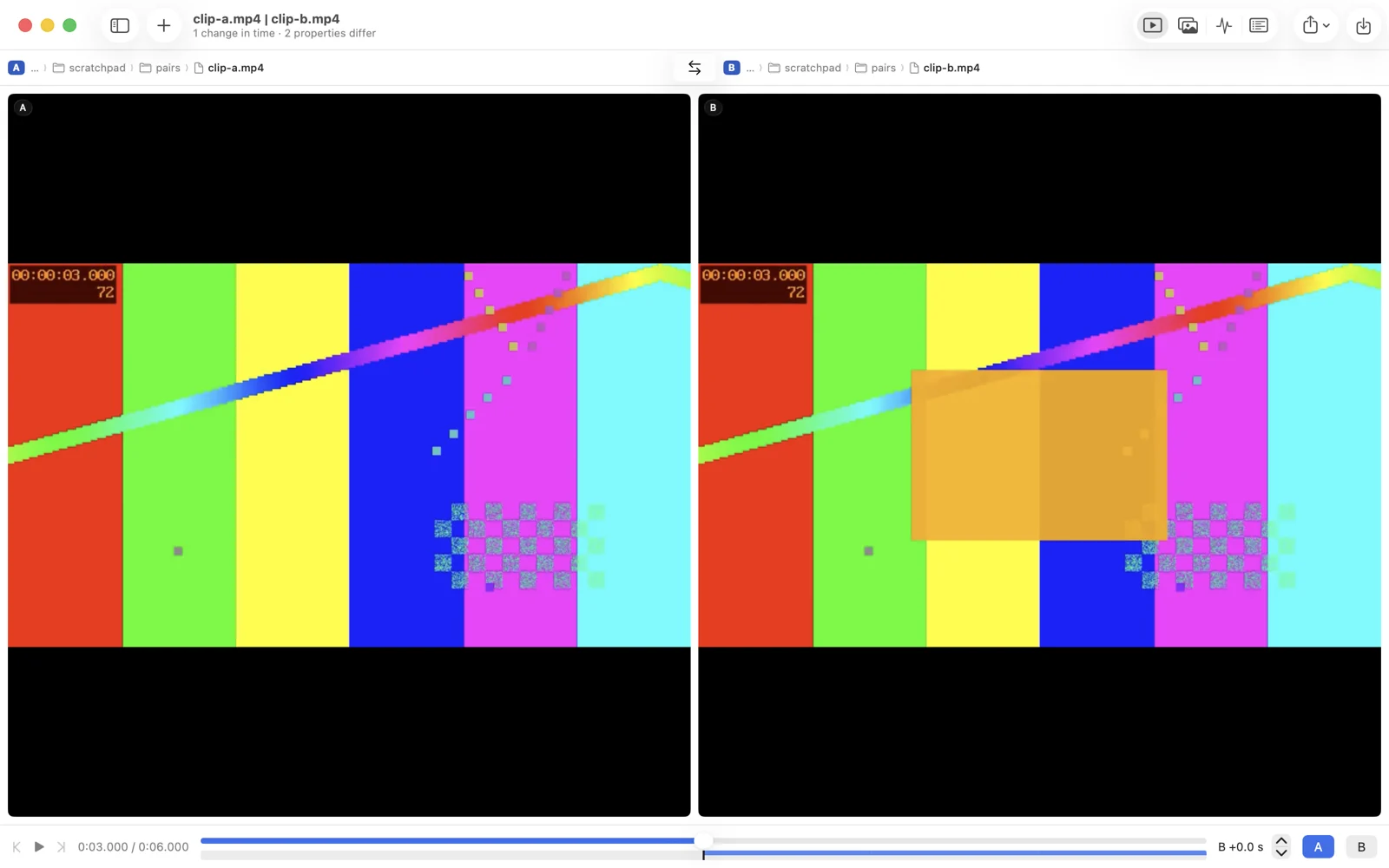
Two recordings (MP4, MOV, M4A, MP3, WAV, AIFF) play in step; Space plays and pauses. Bifocal scans both for the moments where the picture or the sound differs, and Next Change jumps to the first changed frame. Frames opens that moment in the image window for a closer look. Waveforms draw A in blue and B in red, Sound from A or B picks what you hear, and Properties compares the formats.
Binary files Pro
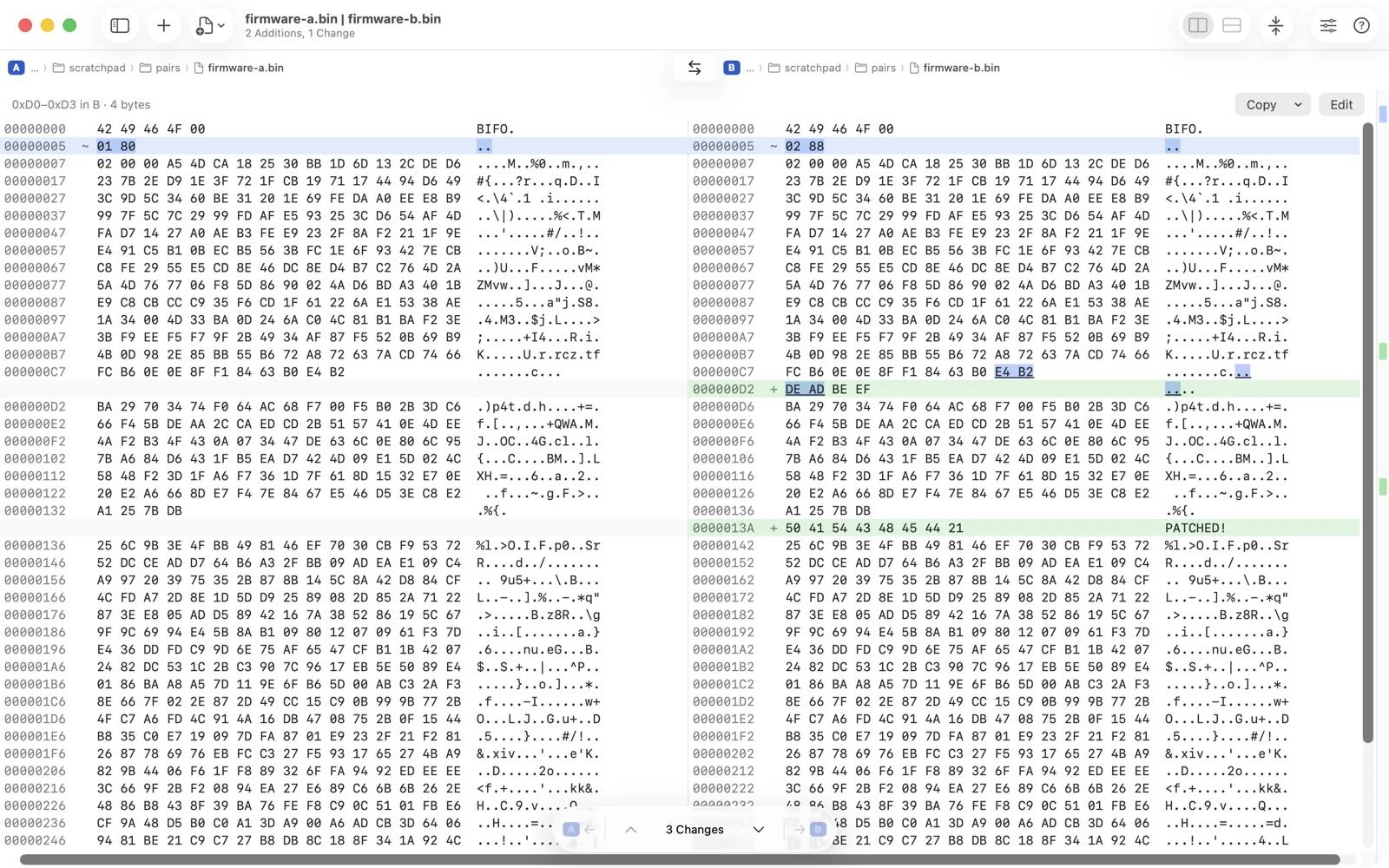
A file Bifocal cannot read as text, or one above the text window's limit, opens in the hex view: offset, hex and ASCII per side, bytes matched with insertions, the changed ones highlighted. Click to select a byte and Shift-click or drag to extend; the bar above says what is selected. Copy as Hex, ASCII, a C array or Base64. On the Mac you can edit too: type two hex digits to overwrite or insert a byte, press Delete to remove the selection, and each edit is written, compared again, and undoable, with a backup of the file. Copy Change to A and B move whole runs of bytes across.
Git Pro
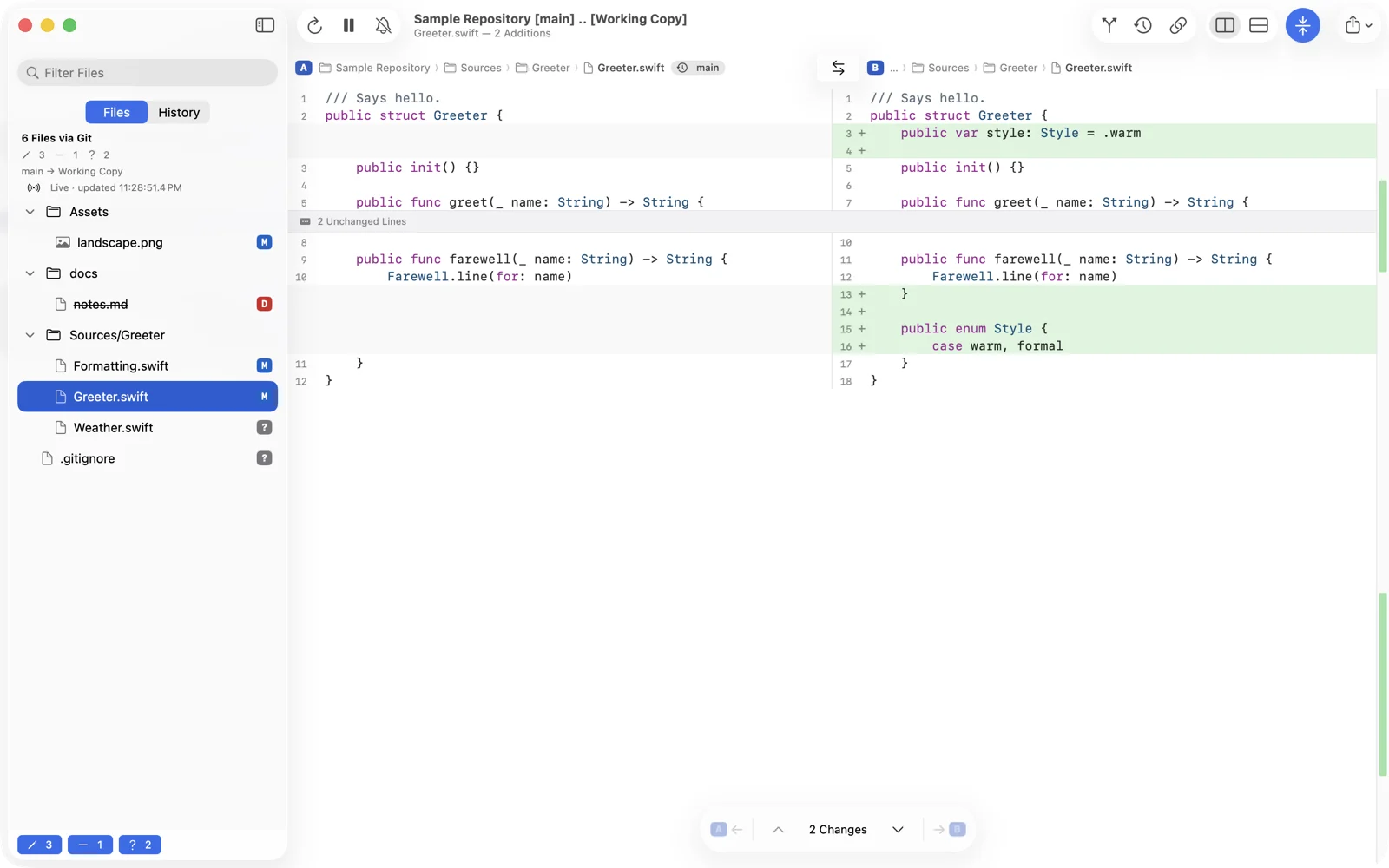
Add a repository's folder under Repositories; Allow Access… confirms it. Its changeset lists what changed in the working copy, in the index, or between any two revisions, with a sidebar of files grouped by kind and a filter. A revision can be a branch, a tag, a commit id or something like HEAD~3. On the Mac the list updates as you edit, and ⌘R refreshes it by hand. Choose a file to see it compared, Show in A or B to find it on disk, and Resolve in Merge Window for a conflict.
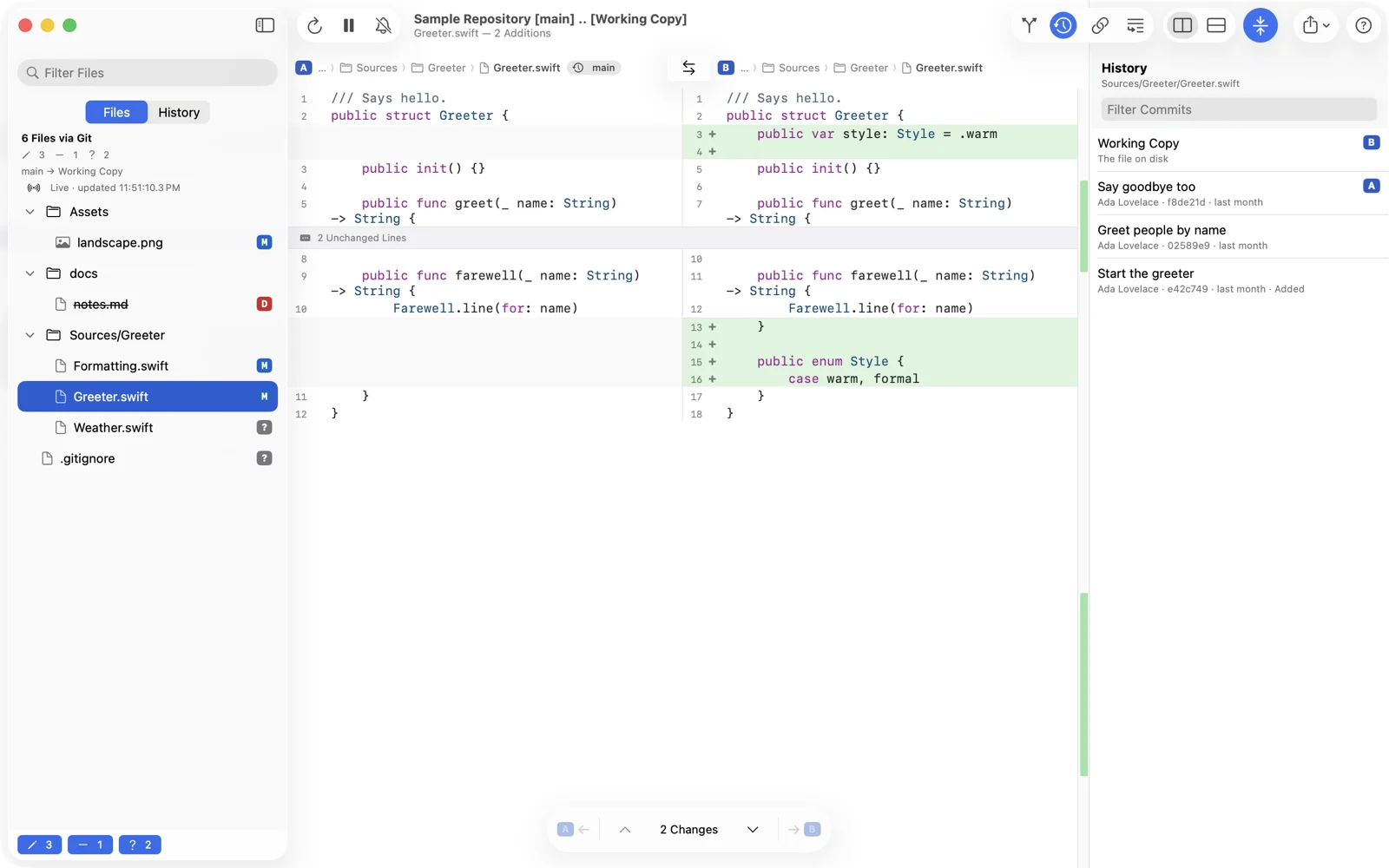
File History lists the commits that touched a file, with their authors, and compares any two, or the file against its previous version. Copy Link makes a bifocal:// link to the changeset or the history, for a note or a message.
Sessions, sharing and reports
- Save Session… (⌘S) writes the window, with its comparisons, comments and bookmarks, as a
.bifocalfile that opens on any of your devices. Quick Look previews it in the Finder and in Files. - Save as Archive… (⌥⌘S) writes the same file with every side's bytes inside, up to 200 MB, so the review opens on a device that has neither original.
- Share sends a comparison as a patch, the form developers trade changes in, as an HTML page, or as a PDF of what is on screen Pro. Reports include your comments.
- Copy Link makes a
bifocal://link that opens the comparison again.
Integration Pro
The Finder and other apps
Select two files or folders in the Finder, or some text in any app, and choose Compare in Bifocal or Compare Text in Bifocal from Services, or Bifocal from Share. Text waits on Compare for a second selection.
If the services are missing, turn them on in System Settings › Keyboard › Keyboard Shortcuts › Services. Bifocal in Share starts turned off, under System Settings › General › Login Items & Extensions › Sharing.
Command line and Git
The bifocal tool uses the same engine as the app from Terminal. bifocal diff, bifocal stats and bifocal merge do what their names say, with --table --key id, --slides and -n for tables, decks and normalized text. bifocal open shows files in the app, and bifocal changes and bifocal history open a repository's changes and a file's history. Build and install it from a Bifocal source checkout with Tools/install-cli.sh. Then, once:
git config --global diff.tool bifocal
git config --global difftool.bifocal.cmd 'bifocal open --wait --title "$MERGED" "$LOCAL" "$REMOTE"'
git config --global merge.tool bifocal
git config --global mergetool.bifocal.cmd 'bifocal merge --open "$BASE" "$LOCAL" "$REMOTE" -o "$MERGED"'
git config --global mergetool.bifocal.trustExitCode true
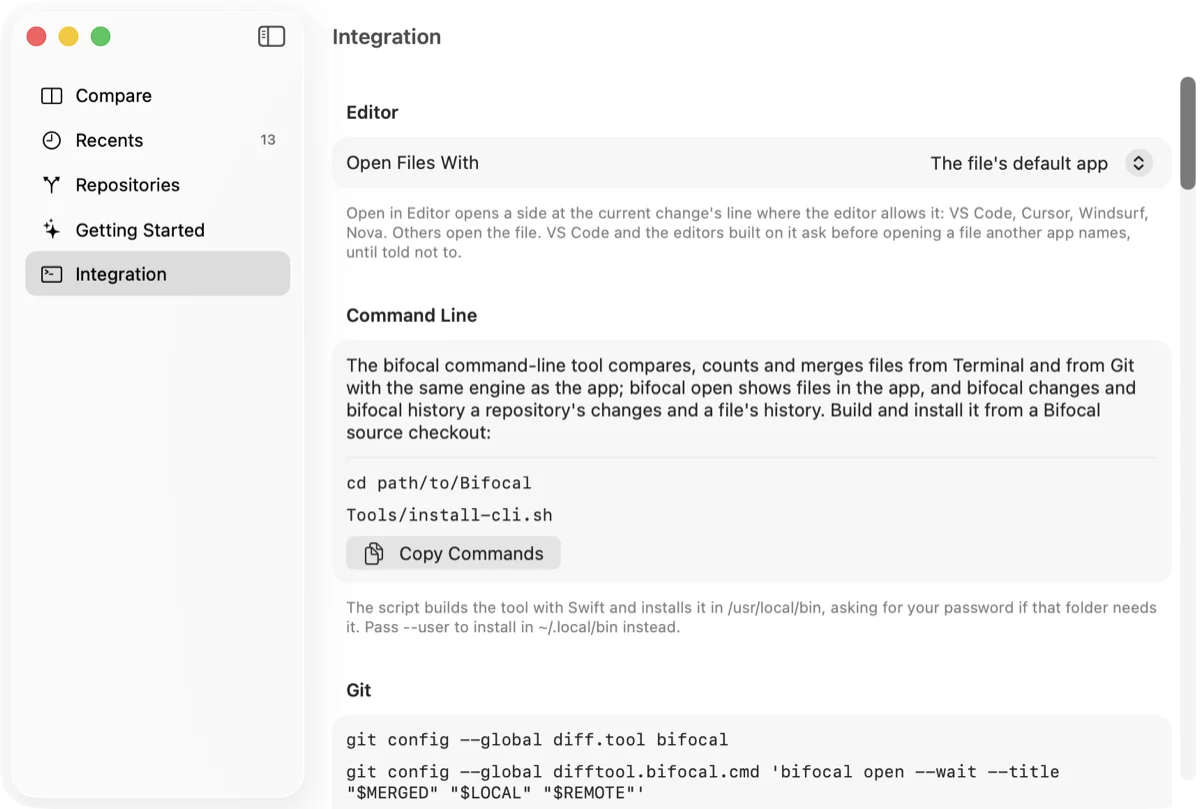
Settings › Integration shows these lines with a Copy button, and setups for Xcode, VS Code, Tower and Fork.
Open in your editor
On the Mac, a side's menu, a line's right-click menu and File › Open B in Editor (⌥⌘E) or Open A in Editor (⇧⌥⌘E) open that file in your editor. VS Code, Cursor, Windsurf and Nova land on the current change's line; other editors open at the top. In the merge window, B's item opens the result. Settings › Integration › Editor chooses the editor, and until you do, the file's default app is used. VS Code asks before opening a file another app names, until you tell it to stop. This one is free.
Links
bifocal://compare?a=/path/old.txt&b=/path/new.txt opens two files; bifocal://text?a=…&b=… two texts; bifocal://changeset?repository=~/Projects/App a repository's working copy, with &from=main&to=feature for two branches; and bifocal://history?repository=…&path=README.md a file's history.
Shortcuts, Siri and Spotlight
Compare Files, Compare Text, Compare Clipboard, Open Recent Comparison, Show Changes and Compare with Previous Version are in the Shortcuts app. Ask Siri to compare the clipboard or open a recent comparison. Spotlight finds recent comparisons and repositories by name.
iPhone and iPad
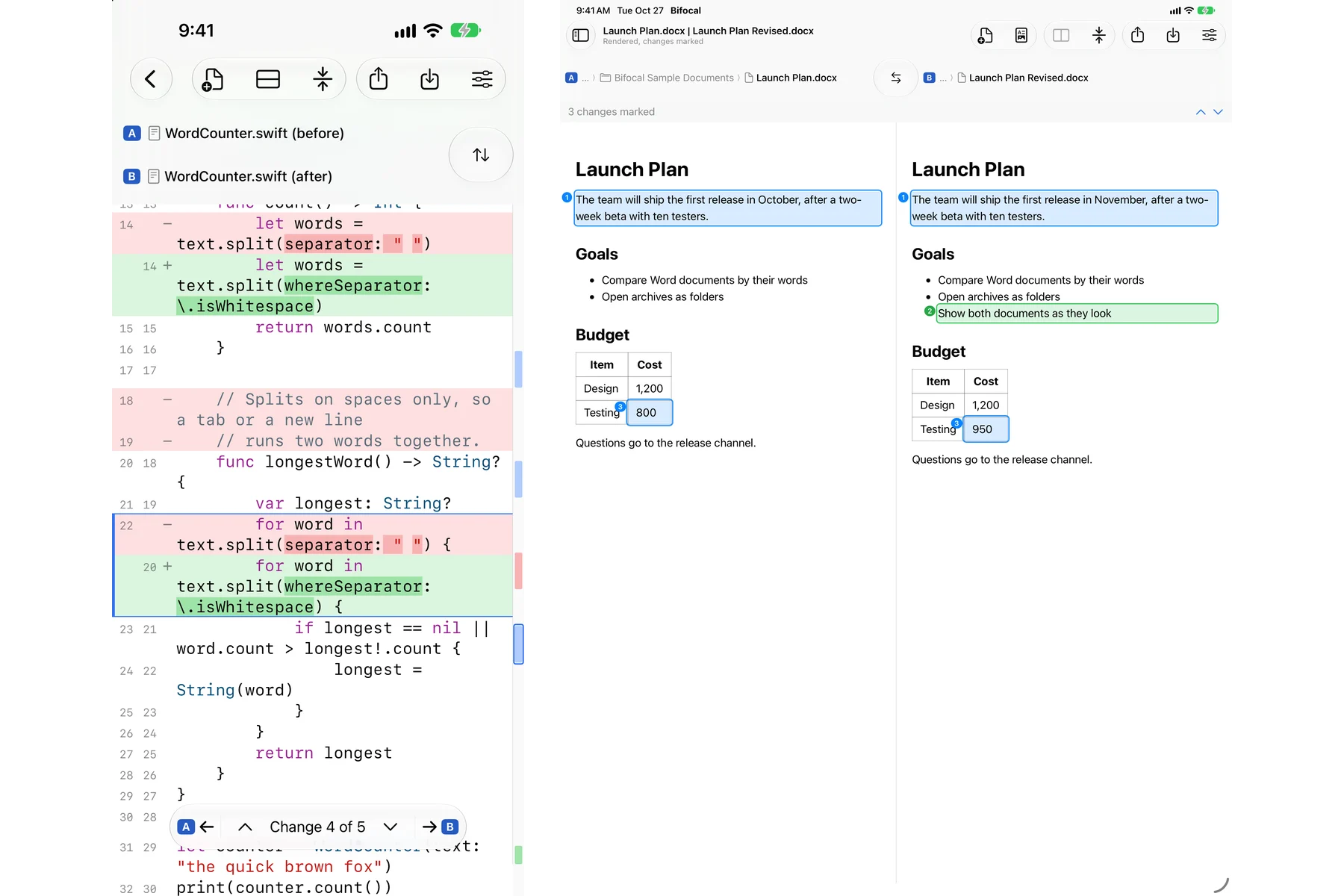
The same windows, with the comparison opening over Welcome. Share two files to Bifocal from the Files app, or choose them with Open Files…; a shared pair waits in Bifocal until you open it. The iPad has the menu bar and every shortcut once a keyboard is attached. The iPhone puts the same commands in the toolbar and in each side's menu. Settings › About holds the help, support and privacy links and Prepare the Log for Support. A comparison left open comes back when the app is relaunched. Copying a change into a file asks first, as on the Mac. Editing bytes needs a hardware keyboard, and Save as Archive lives in the menu bar, so it is on the Mac and iPad.
VoiceOver
Every change begins with a heading VoiceOver reads, such as "Change 3 of 12. 2 lines on A, 1 on B.", so the Headings rotor steps change by change. The Changes, Conflicts, Changed Rows and Differences rotors do the same in their windows. Lines say which side they are on, Next and Previous Change announce where they went, and a reload or a finished merge is announced too. Change marks are symbols as well as colours everywhere, and the text follows the system's text size, with a size of its own in Settings › Text.
Settings
- General: the layout new comparisons start with, live reload, the matching defaults, and Recents.
- Text: font, size, tab width, syntax colouring and wrapping.
- Images & Folders: the image tolerance, how pairs open, and how files are compared.
- Integration: the command-line tool, Git, your editor and the setups above.
- Bifocal Pro: the trial, the purchase and Restore Purchases.
- Advanced: the large-file sizes and the new text view (beta).
Bifocal Pro
Comparing two texts or files is free, always, and so is everything in the text window: Find and Filter, live reload, comments and bookmarks, sessions, Open in Editor, Shortcuts and Siri. Bifocal Pro adds merge, folders and archives, images, documents, tables, 3D models, media, the hex view, Git, change summaries, reports and the integrations. Every Pro feature is free for 14 days. Start the trial from the tour's last page, from Settings › Bifocal Pro, or from any Pro window. After that, one purchase unlocks Pro on your Mac, iPad and iPhone for good, and nothing renews. Restore Purchases is in the same places.
Keyboard
On the Mac, and on the iPad with a keyboard.
| Keys | Action |
|---|---|
| File | |
| ⌘N | New Comparison |
| ⌘O | Open… |
| ⌘T | Add Comparison to Window |
| ⌘S | Save Session… |
| ⌥⌘S | Save as Archive… |
| ⌥⌘E / ⇧⌥⌘E | Open B / A in Editor (Mac) |
| Navigate | |
| ⌘F | Find… |
| ⌘G / ⇧⌘G | Find Next / Previous |
| ⌘↓ / ⌘↑ | Next / Previous Change |
| ⌘← / ⌘→ | Copy Change to A / to B |
| ⌘E | Edit Resolution… (merge) |
| ⌥⌘C | Add Comment… |
| ⌘D | Bookmark Change |
| ⌥⌘↓ / ⌥⌘↑ | Next / Previous Bookmark |
| View | |
| ⌘1 / ⌘3 | Side by Side / Unified |
| ⇧⌘L | Toggle Side by Side / Unified |
| ⇧⌘K | Collapse Unchanged Lines |
| ⌘R | Refresh a changeset, or Compare Again in folders |
| ⌘= / ⌘- | Zoom In / Out (images) |
| ⌘9 / ⌘0 | Fit / 100% (images) |
| Space | Play / pause (video and audio) |